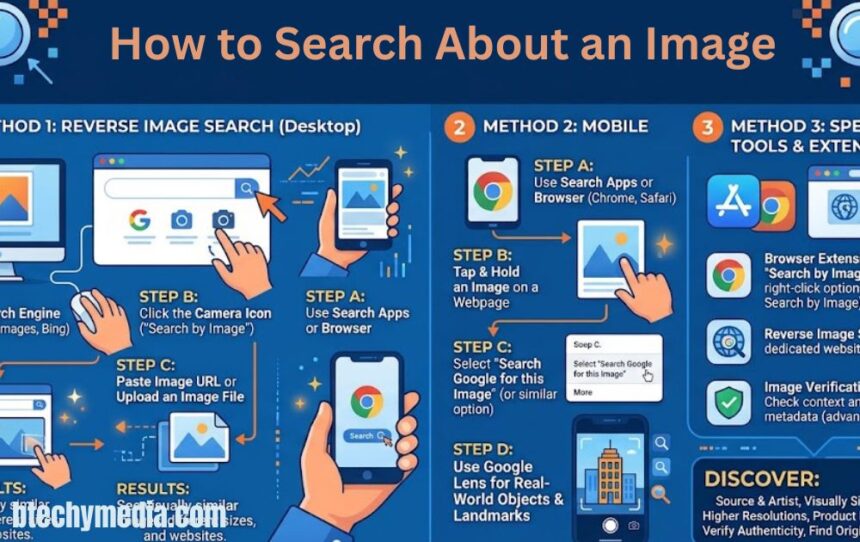
Images have become an important part of everyday internet use. Whether you are browsing social media, shopping online, researching a topic, or reading an article, you regularly come across pictures that make you curious. Sometimes, you might see an unfamiliar product and want to know its name, while other times, you may want to discover where a photograph originally appeared. Instead of describing everything you see in a traditional search engine, you can use the picture itself to find relevant information. This process is commonly known as reverse image search, and it makes online research more convenient. Learning how to search about an image can help you identify objects, discover similar photographs, find websites containing a particular picture, and gather useful information without spending hours searching manually.
Understanding Image Search
Image search allows users to find information using pictures rather than relying entirely on written search terms. Modern visual search technology examines different elements, including shapes, colors, objects, patterns, and other recognizable features. It then compares these details with images available in its search index to provide relevant results. For example, if you discover an attractive chair but cannot identify its style or manufacturer, uploading its photograph may help you find similar furniture and related product pages. This technology is useful for students, researchers, shoppers, content creators, and ordinary internet users. It also makes searching easier when you know what something looks like but do not know the correct words to describe it.
What Is Reverse Image Search?
Reverse image search is a technology that allows you to use an existing photograph to find matching or visually related content online. Instead of entering a phrase into Google, you upload a picture, paste its image address, or select an image directly from a website. The search engine analyzes the visual information and returns possible matches, similar pictures, and websites where related images appear. Some tools can also recognize objects, products, plants, animals, and landmarks. However, different services use different matching methods, so their results may not always be identical. Reverse image search is particularly helpful when you want to investigate an unfamiliar picture or locate other versions of an image.
Why Do People Search for Images?
People search about images for several practical reasons, and the purpose often depends on the type of picture they discover. Online shoppers may want to identify a product, compare prices, or find a particular brand. Students might use visual search to recognize historical buildings, plants, animals, or scientific objects for research. Photographers and website owners can investigate whether their pictures appear on other websites without permission. Similarly, everyday users may want to check whether a photograph is genuine or whether an online profile is using a picture taken from another source. These different applications make image searching a valuable research method rather than simply another way to browse photographs.
Best Tools to Search About an Image
Several online platforms offer visual search features, but each provides a slightly different experience. Some services are particularly useful for identifying objects, while others focus on locating exact copies or discovering websites that contain a particular photograph. Choosing the appropriate tool can improve your results and save time during research. You do not need advanced technical knowledge to use these services because most provide straightforward upload options and searchable interfaces. Three useful options include Google Lens, Bing Visual Search, and TinEye, which can help with different image-related tasks.
Google Lens
Google Lens is one of the most convenient options when learning how to search about an image. It allows users to upload photographs, select pictures from their devices, or search images directly from supported webpages. After analyzing the picture, Google Lens can display visually similar images, websites containing related photographs, and information about recognizable objects. For example, you can photograph a flower and use Lens to discover its possible name or search for a particular fashion item to find similar products. Google also allows users to combine visual searches with additional text, making it easier to narrow down results. Its features make it a practical starting point for general image identification and online research.
Bing Visual Search
Bing Visual Search is another useful platform for finding information through pictures. It allows users to upload an image, paste an image URL, drag and drop a photograph, or use a webcam on supported desktop devices. The platform can return related images, webpages containing similar pictures, product information, and other relevant content. It can be particularly helpful when Google Lens does not provide the information you need because different search platforms may index and organize visual content differently. You can also use it to investigate unfamiliar products or discover alternative versions of a photograph. Remember that automated image recognition can sometimes make mistakes, so important findings should always be checked against reliable sources.
TinEye Reverse Image Search
TinEye is designed to help users find where particular images appear across the internet. Unlike general visual search services that often suggest different pictures of the same subject, TinEye focuses on locating matching and modified versions of an existing image. It can help identify resized, cropped, edited, or otherwise changed copies. This makes the platform useful for photographers, publishers, designers, and website owners who want to investigate how their images are being used. TinEye also provides sorting options that can help users examine older or larger matching versions. However, an earliest match in its index does not automatically establish the original creator or publication date.
Comparison of popular image search tools
| Tool | Main purpose | Best use |
| Google Lens | Object recognition and visual discovery | Identifying objects and products |
| Bing Visual Search | Finding related images and webpages | Exploring similar content |
| TinEye | Finding exact and modified image copies | Tracking image appearances |
How to Search About an Image on Different Devices
You can search about an image using a desktop computer, laptop, smartphone, or tablet. The process is generally straightforward, although the available options may vary depending on your browser and operating system. Desktop users can upload saved photographs or paste image addresses into visual search platforms. Smartphone users can select photographs directly from their galleries or use their cameras to capture objects. Understanding these methods helps you perform image searches whenever you discover something interesting online or in your surroundings.
Searching on a Computer
Searching for an image on a computer is convenient because you can easily access saved photographs and copy image addresses from websites. Open Google and select the image search option to access Google Lens. Choose the upload option and select the photograph you want to investigate from your computer. After uploading it, review the available results, including similar pictures, relevant websites, and recognizable objects. You can also drag an image directly into the search area or paste its image URL when supported. In Chrome, right-clicking an image on a webpage and selecting the Google Lens search option provides another convenient method.
Searching on Android and iPhone
Smartphones make visual searching particularly convenient because you can use photographs already stored in your gallery or take new pictures whenever needed. Open the Google app or a supported browser and select the Google Lens camera icon. Choose an existing photograph or use your camera to capture the object you want to identify. Once the image appears, adjust the selected area if you only want information about one particular object. You can then review the available visual matches and add descriptive keywords to improve the results. This approach works well for identifying plants, furniture, clothing, landmarks, and everyday products without manually typing lengthy descriptions.
Different Ways to Find Information About an Image
There is more than one way to perform a visual search, and the best method depends on where your photograph is stored. If you have downloaded a picture, uploading the file is usually the simplest option. If you discover an image on a website, copying its image address may save you the extra step of downloading it. You can also combine photographs with written keywords to make searches more specific. Understanding these different approaches gives you greater flexibility and helps you investigate images more efficiently.
Uploading an Image
Uploading a photograph is one of the easiest ways to search for information about a picture. First, save the image to your device or locate it in your existing photo gallery. Open a visual search service, select its upload option, and choose the photograph you want to examine. The platform will analyze the image and display relevant visual matches or related information. For better results, use a clear photograph that shows the subject properly without unnecessary background details. If the initial search does not provide useful information, try uploading a cropped version that focuses on the most recognizable part of the picture.
Searching Through an Image URL
An image URL allows you to search using the online address of a photograph instead of uploading the actual file from your device. Open the webpage containing the image, right-click the photograph, and select the option to copy its image address. Next, visit a compatible visual search platform and paste the copied address into its search field. Click the search option to find matching or related images. This method is especially useful when you are researching photographs published on blogs, online stores, news websites, or other public webpages. Make sure you copy the direct image address rather than the general webpage URL, because these links may lead to different results.
Using Keywords Alongside Image Search
Combining keywords with visual search can make your research more accurate and focused. Although an image search engine can recognize objects and patterns, it may not understand every detail of the picture correctly. Adding descriptive words gives the platform additional context and helps narrow down the available results. For instance, if you upload a photograph of a wooden table, you could add terms such as modern dining table, oak furniture, or farmhouse design. Similarly, including a location, product category, or visible brand name can improve the relevance of your search. This combination of visual information and written descriptions is particularly helpful when the original photograph contains several objects.
Tips for Getting Better Image Search Results
Getting useful results depends on the quality of your search image and the way you use available visual search tools. A blurry photograph, crowded background, or unclear subject can make identification more difficult. Before uploading a picture, check whether the main object is visible and whether unnecessary details can be removed. You should also consider trying more than one search engine because different platforms may discover different webpages and image matches. A few simple adjustments can make your search more effective and help you find information that might otherwise remain difficult to locate.
Here are five practical tips to improve your results:
- Use clear photographs: Choose high-quality images with visible details and good lighting.
- Crop unnecessary areas: Focus on the object, product, or feature you want to identify.
- Try multiple platforms: Compare Google Lens, Bing Visual Search, and TinEye results.
- Add descriptive keywords: Include relevant colors, brands, locations, or product names.
- Check different image versions: Search original, cropped, and resized versions when necessary.
Common Uses of Reverse Image Search
Reverse image search has many practical applications across different industries and everyday activities. Online shoppers use it to identify products, compare similar designs, and discover websites selling particular items. Content creators and photographers can investigate where their images appear online and identify possible unauthorized usage. Students and researchers can use photographs to discover information about historical locations, artwork, scientific objects, and other subjects. It can also help people investigate suspicious social media photographs and find additional context about viral images. Although these tools cannot guarantee accurate identification, they provide useful starting points for further research. When combined with reliable sources and careful investigation, image searching can make online information gathering considerably easier.
Privacy and Safety Considerations
Although image search services are convenient, users should understand the privacy implications of uploading photographs. Some images contain personal information, private documents, identifiable locations, or other sensitive details that should not be shared unnecessarily. Before using a visual search platform, review its privacy policy and understand how submitted images or URLs may be processed. For example, Google explains that it may store image URLs searched through its services, while Microsoft states that submitted photographs may be used to improve Bing image-processing services. TinEye states that it does not save uploaded search images or share them. These policies can differ, so check the latest information before submitting confidential material.
How to Verify the Information Found Through Image Search
Finding an image match is only the first stage of research. You should also investigate the webpage where the photograph appears to understand its background and reliability. Check the website’s publication date, author information, image caption, and any references provided alongside the picture. If several websites display the same image, compare their descriptions to identify inconsistencies or misleading information. You can also use a second reverse image search platform to determine whether other versions are available. Remember that search engines do not index every website, so the absence of matching results does not prove that an image is original, private, or unavailable elsewhere. Careful verification helps you make better decisions and avoid relying on incorrect visual information.
Conclusion
Learning how to search about an image can make online research easier, faster, and more productive. Tools such as Google Lens, Bing Visual Search, and TinEye provide different ways to identify objects, discover similar photographs, and locate webpages containing matching images. You can search by uploading a picture, pasting an image URL, or combining visual information with descriptive keywords. Choosing clear photographs, cropping unnecessary details, and comparing results across different platforms can improve your experience. However, always consider privacy and verify important information through trustworthy sources. With the right approach, reverse image search becomes a valuable tool for shopping, education, content research, photography, and everyday internet browsing.
FAQs About how to search about an image
1. How can I search for information about an image?
You can upload your photograph to Google Lens, Bing Visual Search, or TinEye to find matching images and related information.
2. Is Google Lens free to use?
Yes, Google Lens is generally available as a free visual search tool through supported Google services and devices.
3. Can I search for an image without downloading it?
Yes, you can paste the direct image URL into a supported reverse image search platform instead of downloading the photograph.
4. Which website is best for reverse image search?
Google Lens is useful for general visual searches, Bing offers related webpages and products, and TinEye specializes in finding matching and modified images.
5. Can reverse image search identify fake photographs?
Reverse image search can help investigate suspicious photographs by finding earlier appearances and matching versions, but additional fact-checking is necessary to establish authenticity.